Everything you need to use the Kordon Online app: what each screen does, step-by-step how-to, and fixes for common issues. Screenshots show exactly where to find each feature.
KORDON.online is a free app that shows live queues at Ukraine's road border crossings with Poland, Slovakia, Hungary, Romania and Moldova. It shows queue counts, trends, estimated wait times, a 6-hour forecast, driver reviews, and a bus-carrier border-wait tracker. The Android app is a wrapper around the same web app at kordon.online.
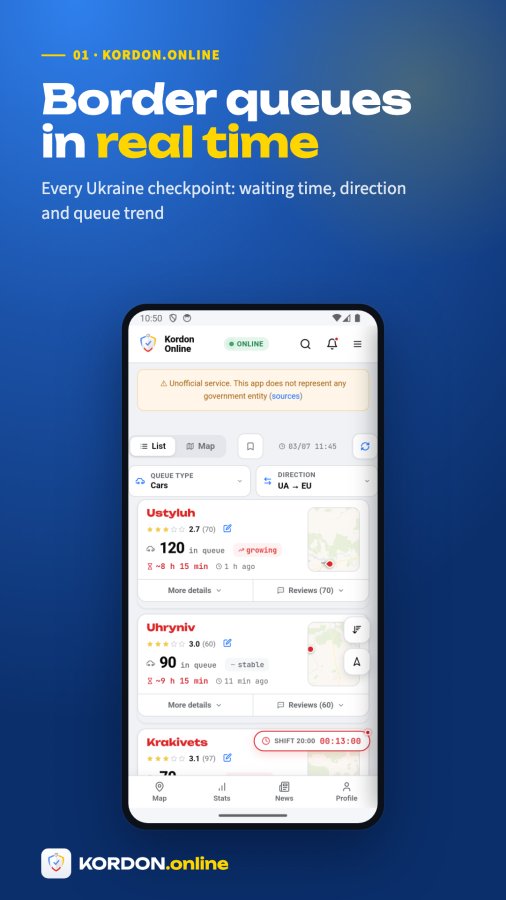
No. KORDON.online is explicitly an unofficial service and does not represent the State Border Guard Service or any government body. It aggregates data from public sources and community reports, so figures may differ from the real situation at the checkpoint.
Data is aggregated from public government sources: dpsu.gov.ua (State Border Guard of Ukraine), granica.gov.pl (Polish Border Guard), kordon.customs.gov.ua (Ukrainian Customs), politiadefrontiera.ro (Romanian Border Police), police.hu (Hungarian border police), border.gov.md (Moldovan Border Guard), plus nakordoni.eu itself as an aggregator, and user reports/Telegram channels from the KORDON.online community. The full source list is in the app footer under "sources".
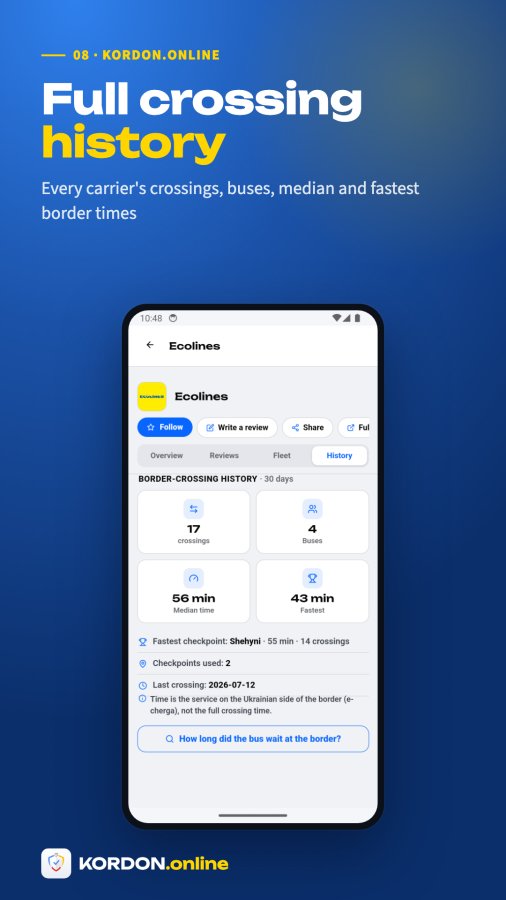
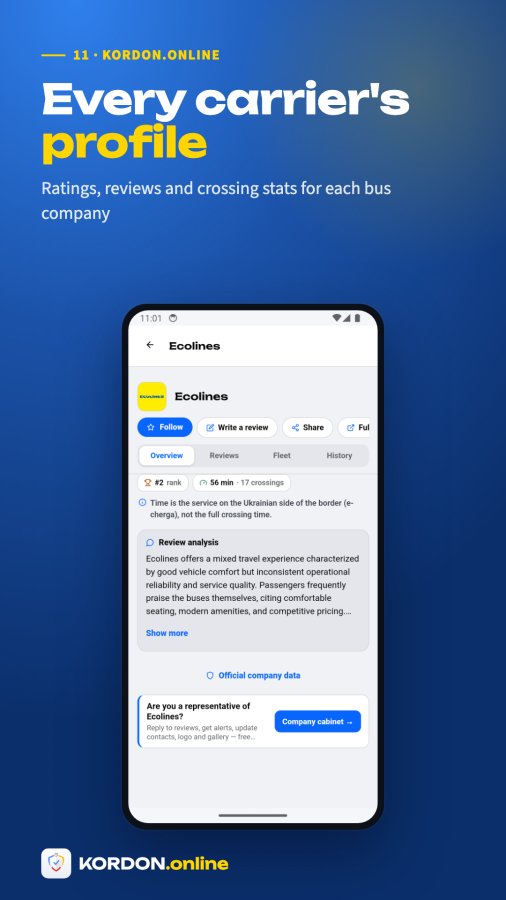
No — the time shown is specifically the service time on the Ukrainian side of the border (the e-cherga electronic queue system), not the full physical crossing time including the neighboring country's checks. This disclaimer is shown directly on the ranking board and on every carrier's Overview and History tabs.
The native Android app detects it's running inside the app (by user-agent) and shows a dedicated bottom navigation bar plus app-only features: the guided tour, star ratings and mini-maps on cards, full Firebase lock-screen queue alerts with custom sounds, and in-app update/rate prompts. Plain browser visitors instead see the website's marketing hero and an "install the app" nudge. Both share the same underlying checkpoint data, reviews, and bus-carrier features. The iOS app (v3) is fully native: native checkpoint cards and detail panels with the 6-hour forecast chart, a native map tab, the buses hub, news, home-screen widgets, an Apple Watch app, and the AI assistant with photo upload — all backed by the same live data as the website.
According to the in-app Privacy Policy, KORDON.online does not store personal data on its servers — it collects technical data (IP, browser/OS, language), usage data (pages viewed, filters used, visit duration), and uses cookies to remember theme/language. It uses Google Analytics and Google AdSense, which have their own data practices. Contact privacy@kordon.online for privacy questions.
KORDON.online's checkpoint list focuses on cars, buses and pedestrians; truck/cargo and tax-free checkpoint types are excluded from this app's filters. For truck-specific border bans and restrictions, Nakordoni has a separate dedicated app (Truck Ban Checker).
Three: Ukrainian, English, and German. Switch between them from the drawer menu's language buttons (UK/EN/DE).
Yes — KORDON.online v3 is a fully native iOS app (rebuilt from the ground up, no embedded website for the main screens). It has native checkpoint cards with live queues and the 6-hour forecast, a native map, the buses hub, news, queue alerts, home-screen widgets, an Apple Watch app and the built-in AI assistant with photo upload. It is currently in beta on TestFlight and is coming to the App Store; it uses the same live data as the website.
Yes, KORDON.online is free to download and use. The app is supported by ads.
The app's Google Play listing does not describe a required account or registration to use its core features. You can browse checkpoints and queues without signing up; linking an optional NKD account is only needed for cross-app syncing.
The app's listing states coverage of more than 35 checkpoints across Ukraine's borders with Poland, Slovakia, Hungary, Romania, and Moldova.
No. The app shows an estimated wait time plus a short-term forecast, not a guaranteed crossing time or appointment. Treat it as planning guidance and expect it may differ from the real situation at the checkpoint.
According to the app's Google Play data-safety section, it may collect data such as app activity and web browsing, and may share app activity with third parties; data is stated to be encrypted in transit, and deletion can be requested. For on-device data, use the in-app 'Delete my data' option in the drawer's Legal section; for other privacy questions, contact ads@nakordoni.eu.
Use KORDON.online for planning and monitoring queue trends, but verify critical travel decisions with official sources such as the State Border Guard Service or the relevant national border authority before you travel, especially close to your planned crossing time.
Yes. Staffing levels, inspections, system outages, weather, road conditions, and temporary restrictions can all change border queues quickly and with little advance notice. Always check for the latest status close to your travel time and confirm anything time-sensitive with the official border authority.
Each card shows: the live number of vehicles/people in queue (or "No queue"), a trend indicator (growing/decreasing/stable), an approximate waiting time, a driver star rating with review count, and a small mini-map thumbnail of the checkpoint location (tap it to open the full map). Swiping the card left reveals quick actions.
Yes. A List/Map segmented control lets you switch between a scrollable list of checkpoint cards and an interactive map with fuel, traffic, weather and camera layers. Note the map requires an internet connection; the list view works offline using cached data.
Yes, in the native Android app you can pick from 5 different alert sounds in Queue alerts settings, with a preview. In a browser, custom sound choice isn't available — the browser plays the system notification sound instead.
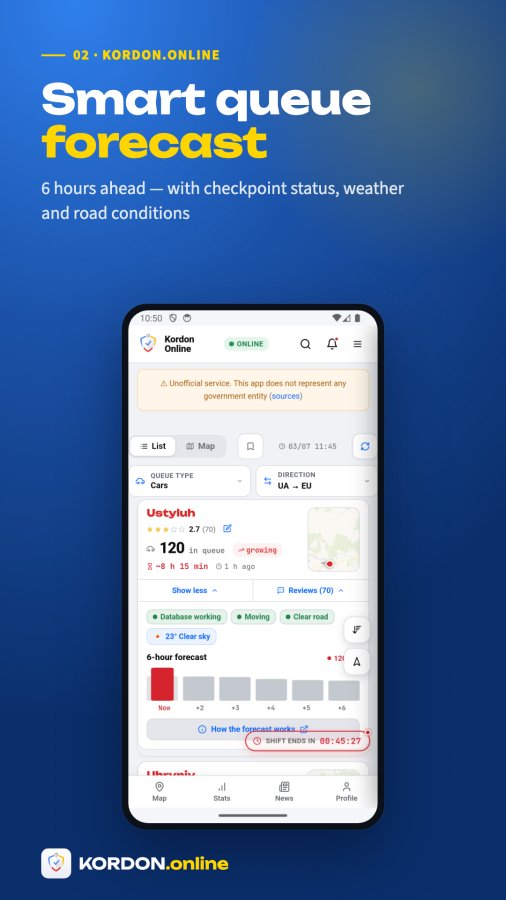
Tapping "See more" under a checkpoint expands a panel showing its current status, live weather, and a 6-hour queue forecast chart (predicted movement), plus a link to "How the forecast works". Right next to it are that checkpoint's reviews with thumbs up/down voting.
The forecast panel under a checkpoint's details shows a smart projection of how the queue is expected to move over the next 6 hours, based on recent trends, alongside the live current count. There's a "How the forecast works" link in the details panel with more explanation; treat it as an estimate, not a guarantee, since it's derived from historical patterns and current trend data.
Each review has a "Helpful?" prompt with thumbs-up and thumbs-down buttons. Tapping one records your vote and updates the shown count. Votes are tracked per device (no account needed), so you vote once per review on a given device.
"Ask" opens an in-app AI chat assistant scoped to that checkpoint, so you can ask natural-language questions about it (e.g. current conditions, how to get there). The same assistant is reachable from the Contact page for general questions about the app.
The native app's bottom bar has four slots: Stats (re-sorts the list by largest queue and scrolls to top), Map (toggles the interactive map with services/traffic/weather layers), News (border news with an unread-count badge), and a fourth slot that shows Nearby (opens Find Me) normally but switches to Buses (the carrier ranking and border-wait section) when your transport filter is set to Buses. Other areas like your Profile, NKD account and the app tour are reached from the drawer menu rather than the bottom bar. On the native iOS app the bottom bar has four fixed tabs — Queues, Map, News and Buses; the Queues tab also hosts the filters, Find me and the assistant, and settings are behind the gear icon.
The Buses tab is a full mini-product for tracking intercity bus carriers crossing the Ukraine border: a Ranking board (carriers ranked by border-crossing speed), an All tab (browse/search every carrier), and a Following tab (carriers you follow). Each carrier page shows reviews, official registry data, licensed routes, a fleet of plates, and border-crossing history.
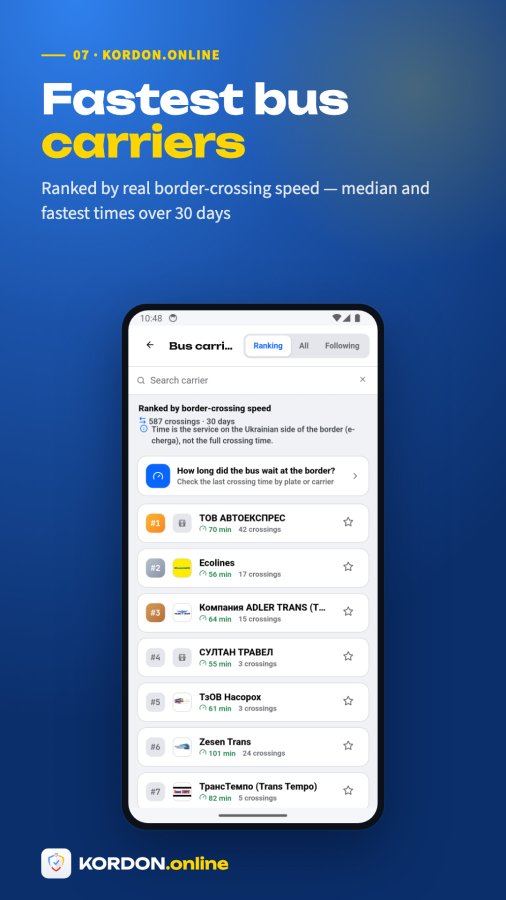
Carriers on the Ranking board are ordered by border-crossing speed — the median minutes their buses spend in the Ukrainian e-cherga queue system. On the "All" tab you can additionally sort by Popular, By ranking, Fastest, A–Z, or Z–A.
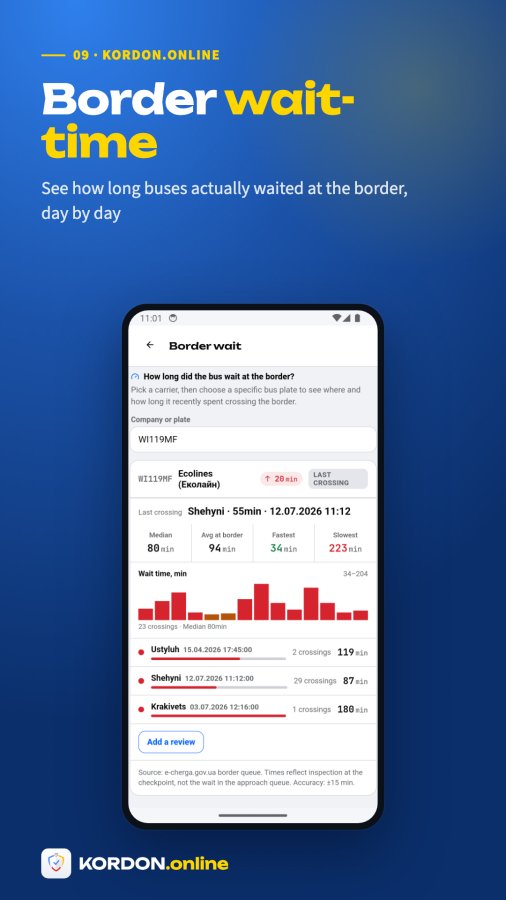
A carrier's History tab shows aggregate stats: number of crossings, unique buses, median crossing time, fastest time and which checkpoint it was at, how many checkpoints the carrier uses, and its most recent crossing. A per-plate lookup shows the same kind of stats (median, average, fastest/slowest, checkpoints used) scoped to that one bus.
Under "Official registry" (collapsed by default) you can see the carrier's director, EDRPOU code, license number and whether it's currently valid, sourced from Ukraine's official licensing registry. Below that, "Licensed routes" lists the carrier's registered routes with distance, duration, border checkpoints used, and partner carriers.
When you look up a specific plate's border-wait history, a "Reviews about this bus" section shows full reviews tied to that exact plate (reviewer, vehicle rating, route, date, minutes, and text) — separate from crowd-sourced quick queue reports which don't include full review text.
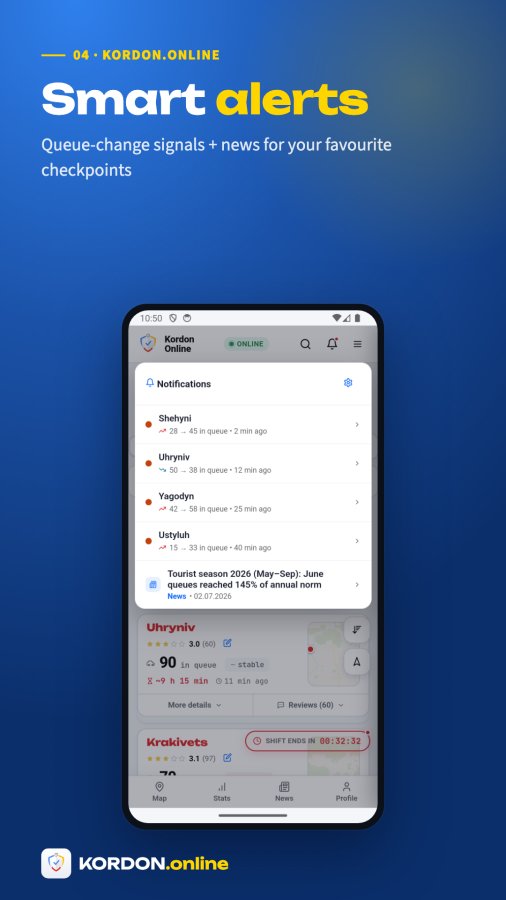
The News tab shows border-related news items, with two views: "Belled" (news about checkpoints you've bookmarked/subscribed) and "All". An unread-count badge appears on the News button and the Belled tab when there's something new. If "Belled" is empty, add a checkpoint to your list first to see news about it.
The checkpoint list works offline using the last cached data, shown with an "Offline — data as of [time]" banner. The interactive map, however, requires an internet connection and will show a "Map needs internet" message if you try to open it offline; the list stays usable in the meantime.
KORDON.online occasionally shows a quick "Enjoying the app?" star-rating prompt. If you tap 4 or 5 stars, it offers to take you to Google Play to leave a public review; if you tap fewer stars, it instead asks for feedback on what to improve rather than sending you to the store. Tap "Not now" to dismiss it — it won't insist immediately again.
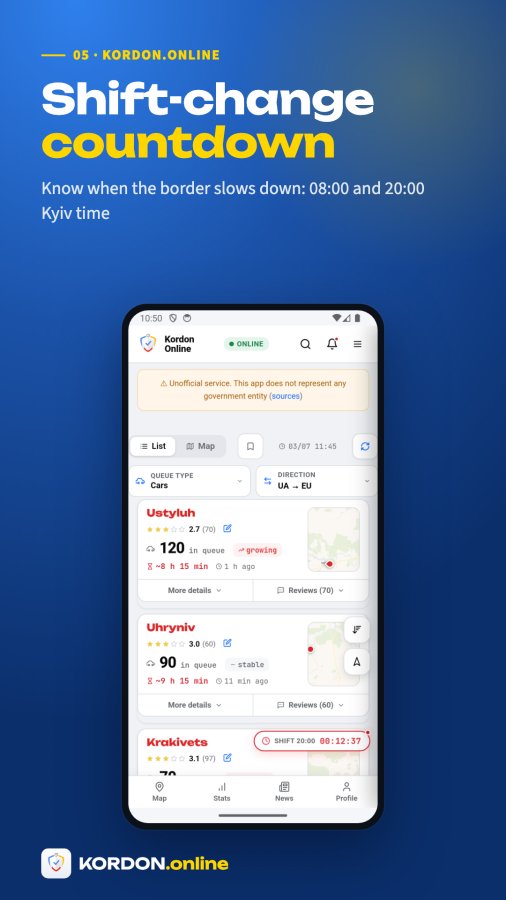
A small countdown shows time until the next Ukrainian border-guard shift change (shifts typically change around 08:00/20:00 Kyiv time). Queues and processing speed can behave differently right around shift changes, so this is shown as useful context near the checkpoint data.
NKD is a single lightweight account shared across Nakordoni's apps — Navigator, KORDON.online, and Truck Bans. You get a recovery code (format NKD-XXXX-XXXX) that you can use to link your data/preferences across devices and apps, or create/unlink it from the drawer menu's "NKD account" section.
"No queue" means the source reports zero vehicles/people currently waiting at that checkpoint for the selected transport type and direction. A number means that many are currently reported in line, alongside a trend arrow showing whether it's growing, decreasing, or holding stable compared to recent readings.
The map view includes toggleable layers for Services (fuel/POIs), Traffic, and Weather/road conditions, plus live checkpoint cameras where available (shown as a small camera icon on a checkpoint's mini-map).
The small thumbnail on each checkpoint card is a static preview with a location pin (and a camera icon if a live cam exists) — tapping it opens the full interactive map centered on that checkpoint, with routing, traffic, fuel and other service layers.
The stars next to a checkpoint's name are an aggregate driver rating based on submitted reviews, along with a review count. Tapping the pencil icon next to the stars lets you add your own review.
The "Data" swipe action on a checkpoint card opens fuller statistics and charts for that checkpoint on nakordoni.eu, and the details panel shows a 6-hour forecast. Note the bottom-bar "Stats" button mainly re-sorts your list by largest queue (it isn't a separate analytics screen).
"Belled" refers to checkpoints (or carriers, for the bus section) you've bookmarked/subscribed via the bell icon — the News tab's "Belled" view and the notifications panel's "Belled only" filter both show content scoped to just those subscribed items.
Yes — the native iOS app ships home-screen widgets that show the live queue for your chosen checkpoint(s). Long-press your home screen, tap +, search for KORDON.online and pick a widget size; the widget refreshes automatically and tapping it opens the app on that checkpoint.
Yes — the iOS app includes an Apple Watch companion: a glanceable list of your checkpoints with live queue numbers plus watch-face complications. It syncs its checkpoint selection from the iPhone app automatically.
The built-in assistant bundles several functions: AI chat about checkpoints and the app, leaving checkpoint opinions, bus/carrier opinions, queue reports (with photo attach via the system picker), plate suggestions, feedback and app support. Individual functions can be switched on or off server-side, so the set you see may vary slightly by app version.
The list auto-refreshes every 2 minutes (120 seconds) while the app is open. You can also tap the Refresh button next to "Find me", or pull down on the list to refresh manually. Each checkpoint shows a "time ago" label so you can see exactly how fresh its own data is.
Swiping a checkpoint card left reveals six actions: Data (opens the checkpoint's full statistics page on nakordoni.eu), Review (opens the review/opinion composer for that checkpoint), Queue (opens a form to report/correct the current queue value), Ask (opens the in-app AI chat about that checkpoint), Alert (subscribes/unsubscribes the bell notification for that checkpoint), and Share (shares a link to the checkpoint).
At the top of the list you can switch direction (Leaving Ukraine / Entering Ukraine) and filter by transport type — Cars, Buses, or Pedestrians — plus filter by neighboring country. There's also a sort menu (Default, Smallest queue first, Largest queue first, By name).
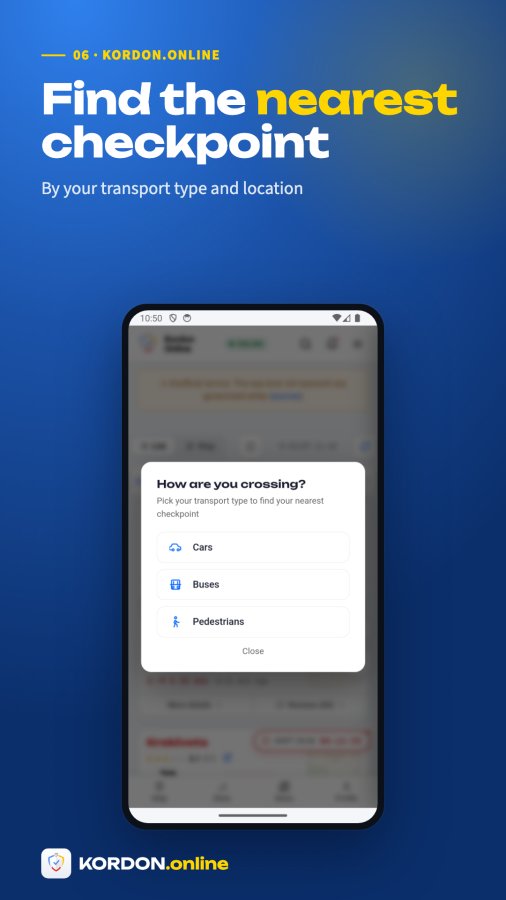
"Find me" uses your device location to find the nearest checkpoint of your chosen transport type (car/bus/pedestrian). Tap Find Me, pick your transport type, and it shows your nearest checkpoint with its live queue and an option to enable alerts for it. If location access is denied, it will prompt you to enable it in device settings.
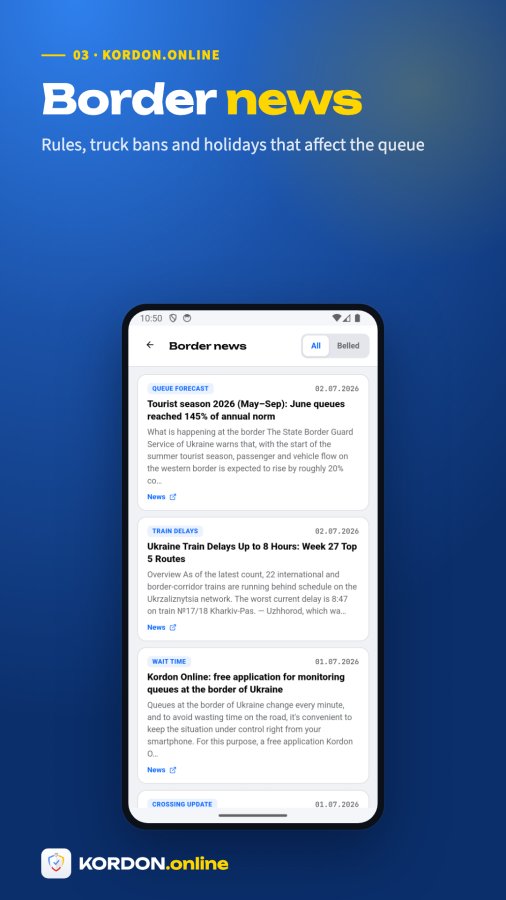
Swipe a checkpoint card left and tap "Alert" (the bell icon), or use Find Me and tap "Notify me of changes". You'll get a sound alert on your lock screen when the queue at that checkpoint changes significantly. You can manage all your subscribed checkpoints from the drawer menu under "Queue alerts".
Yes. In Queue alerts settings you can turn on "Quiet 21:00–06:00" so alerts arrive without sound at night, or turn on Silent mode permanently so alerts only show on screen without sound at any time. Both are separate from the master notifications on/off toggle.
Open the drawer menu → Queue alerts, find the checkpoint under "Selected checkpoints", and tap Remove. You can also swipe the same checkpoint's card left in the list and tap the bell icon again to toggle it off.
Swipe the checkpoint's card left and tap "Review", or tap the pencil icon next to its star rating, or scroll to its Reviews section and tap "Write a review". This opens the built-in review composer where you rate and describe your experience at that checkpoint.
If you think the shown queue count is inaccurate, swipe the checkpoint card left and tap "Queue" — this opens a report form where you can submit what you're actually observing at the border. This feeds into the community/crowd-sourced data alongside the official sources.
Open the drawer menu and tap "Dark mode" / "Light mode" to toggle the theme. Inside the native app, the theme defaults to following your device's system light/dark setting the first time you open it, then remembers your manual choice.
KORDON.online supports three languages: Ukrainian, English, and German. Switch via the language buttons (UK/EN/DE) in the drawer menu under Navigation.
In the native app, open the drawer menu and tap "App tour" to replay the 7-step guided walkthrough (welcome, search & filters, checkpoint card, swipe actions, details & reviews, navigation, menu). It's the same tour shown automatically the first time you open the app. The tour is an app-only feature.
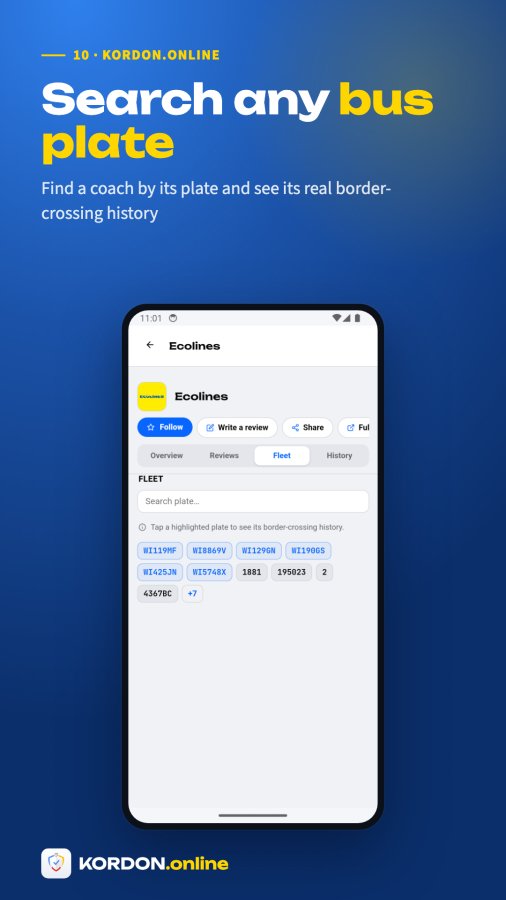
Use the search box on the Buses tab — it searches carrier names across all companies (not just the visible top results). If your query looks like a plate (contains digits), matching plate numbers are shown above the carrier results too, so one search box covers both carrier name and plate lookups.
Tapping the star on a carrier follows it and, by default, enables two notification types: "Rank changes" (when the carrier moves up/down the speed ranking) and "New reviews" (when someone reviews it). These show up as an activity feed in your "Following" tab — it's a feed you check inside the app, not a push notification.
On the Buses tab, use the "How long did the bus wait at the border?" card (or open a carrier's History tab, or tap a highlighted plate in a carrier's Fleet list). Enter either the carrier name or the license plate in the single "Company or plate" search field — it accepts both. Results show the last crossing, a trend vs. recent average, and a tappable bar chart of past crossings (tap a bar to see its exact minutes and date).
The Fleet tab lists all known license plates for that carrier. Plates that have been seen crossing the border are highlighted and tappable — tapping one opens that specific bus's border-crossing history. If the fleet has many plates, a search box lets you filter them.
Yes — on your company's page you'll see "Are you a representative of [company]?" with a link to the free Company cabinet portal (nakordoni.eu/developers/company), where you can reply to reviews, get alerts, and update contacts, logo and gallery.
Open the carrier's page and tap "Write a review" — this opens the same in-app review composer used for checkpoints, pre-filled for that company. Reviews can rate categories like Vehicle, Staff, and Price/quality, and an AI-generated summary of pros/cons/highlights is shown once enough reviews exist.
Swipe a checkpoint card left and tap "Share", or use the Share button on a carrier's page. On devices/browsers that support it, this opens the native share sheet with a link; otherwise it falls back to copying the link to your clipboard.
The Android app is on Google Play (search KORDON.online, package online.kordon.app). A fully native iOS app is in beta on TestFlight and is coming to the App Store. When you visit kordon.online in a regular mobile browser, the site shows a small "Install the app" nudge linking to the store. The web version works fully in any browser without installing, though lock-screen notifications and custom sounds are richer in the apps.
The app checks for updates automatically and shows an "Update available" prompt with a button to get the newer version when one is published — just tap Update. You can also update manually anytime via Google Play.
Open the drawer menu → Legal → "Data Deletion". It lists what's stored (theme/language prefs, an anonymous AI-assistant session ID, AI chat history, your saved reviews/reports, and anonymous analytics) and has a "Delete all my data" button that immediately wipes your local data and AI session. For Google Analytics data specifically, use Google's own activity tools; for anything else, contact privacy@kordon.online.
Open the drawer menu → Information → Support (or Contact). There's also the in-app "Ask" AI assistant, reachable from a checkpoint's swipe actions or the Contact page, for quick questions about the app itself.
Yes — there's an "Open navigator" option that hands off to the full Nakordoni Navigator map product, which has complete routing with traffic, fuel stations and services, rather than just the lightweight map built into KORDON.online.
Open a checkpoint's reviews and tap the "+ Add opinion" button at the top of the list — it opens the assistant's opinion form where you rate, describe your experience and can attach a photo. The same form is reachable via the Review swipe action on the checkpoint card.
Location access is used for the 'Find me' feature to locate the nearest checkpoint. When the app requests this permission you can allow or deny it; if denied, the nearest-checkpoint feature won't work, but the rest of the app remains usable. Review the in-app privacy policy for full details.
Yes. When a bus-carrier review includes photos, they show as thumbnails under the review in the carrier's Reviews tab. Tap a photo to open it full-screen; if there are several, swipe left/right between them, and tap the ✕ (or press back) to close.
Open a bus carrier, go to the Fleet tab and tap “Add a bus plate”. A short form opens in the assistant — enter the plate number and, if you like, a photo of the bus. Submitted plates are reviewed by our team before they appear on the carrier. You can track the status of plates you've added under “My activity” in the assistant.
Bus carrier pages show one combined list of passenger opinions no matter where they were left — on the KORDON.online website or in the mobile apps. That way the rating and the opinions you read reflect all passengers, not just app users. The "+ Add opinion" button on the carrier page adds yours to the same shared list.
On the native iOS app, a carrier's page includes a border-performance card that charts the carrier's recent border waits (how long its buses stood at each crossing over recent trips), so you can compare carriers by how quickly they actually clear the border rather than by rating alone. It is built from the same tracked plate-wait data as the border-wait lookup.
Tap “Nearby” and choose your transport to find your closest checkpoint, then tap “Find the fastest & closest checkpoint”. Using your location it ranks nearby crossings by total time = driving distance + the live queue on the Ukrainian side (e-cherga) + average crossing time. You can filter by vehicle type and destination country, tap any result to jump to it in the list, and share the tool with the share button.
Each checkpoint card shows its own "updated X min/hours ago" timestamp because different border posts report at different intervals — some sources update less frequently than others, which is normal. If you're offline, the app shows a banner "Offline — data as of {time}" using the last cached data. If a specific checkpoint has been stale for a very long time, its source feed may be temporarily down; try the Refresh button or check back later.
This happens in three cases: location permission was denied (open device Settings and allow location for the app/browser), your device couldn't get a GPS fix (try again in an open area), or there's genuinely no checkpoint of the selected transport type near you. The app shows a specific error message and a "Try again" / "Open settings" button for each case.
First, make sure you actually subscribed a checkpoint (tap the bell icon on its card — the notifications panel lists your subscribed checkpoints) and that you granted notification permission when prompted. Real lock-screen alerts (which work even when the app is closed) come through the native Android app via Firebase push; in a browser they use Web Push, which needs Service Worker/Notification support and won't work where that's missing (e.g. some iOS browsers) — the panel will say alerts are app-only in that case. Also check that Silent mode or Quiet hours (21:00–06:00) isn't muting the sound, and that the app itself is allowed to send notifications in your device settings.
Yes — when you add an opinion through the assistant form (the "+ Add opinion" button on the reviews list, the Review swipe action, or a queue report), you can attach a photo: the native iOS app opens the system photo picker, and on Android/web the browser file chooser is used. The legacy quick review composer remains text plus a star rating. (Bus carrier photo galleries are populated from official/approved sources, not from the review form.)
There isn't a working list-appearance/skin picker in the current app — the only appearance controls that actually take effect are dark/light mode (in the drawer menu) and the List/Map view toggle. If you're looking to change the visual density or card style beyond that, it's not currently available; the standard KORDON cards are what you get.
This appears if you open the app offline before it has ever successfully loaded and cached checkpoint data — there's simply nothing saved yet to show. Connect to the internet once so the app can fetch and cache the data, after which offline mode will show that cached snapshot.
Double-check the code matches the exact format NKD-XXXX-XXXX with no typos — the app will show "Could not link. Check the code." if it doesn't match a valid account. If you don't have a code yet, use "Create account" instead of trying to link one.
Try pulling down on the list to refresh, or tap the Refresh button. If the whole app seems unresponsive, close and reopen it (Android's back button closes menus/panels/the map before minimizing the app, so use that first if a panel seems stuck open). If problems persist, check whether you have the latest version installed and that you have an internet connection, since the map view specifically requires connectivity.
Because KORDON.online pulls from official public feeds plus community reports rather than measuring the physical line itself, there can be a lag or mismatch versus what you actually see at the checkpoint — this is stated directly in the app's disclaimer. If you notice this, you can report the correct value yourself via the "Queue" swipe action to help other drivers.
Inside the native Android app, the web page's direction toggle, filter bar and old update bar are intentionally hidden in favor of the app's own bottom navigation and dedicated filter controls, so the layout looks slightly different from visiting kordon.online in a regular browser — this is expected, not a bug.
First try refreshing the app and cross-checking with the official border authority for that checkpoint. You can also use the 'Queue' swipe action to submit what you're actually observing, or email ads@nakordoni.eu with the country, checkpoint name, time, a screenshot, and what you observed so the team can investigate.
This guide mirrors the in-app assistant. Still stuck? Ask the assistant inside the app (Menu → Support) or email ads@nakordoni.eu. Kordon Online is an unofficial information service — for legally critical decisions, verify with the official authorities.
